
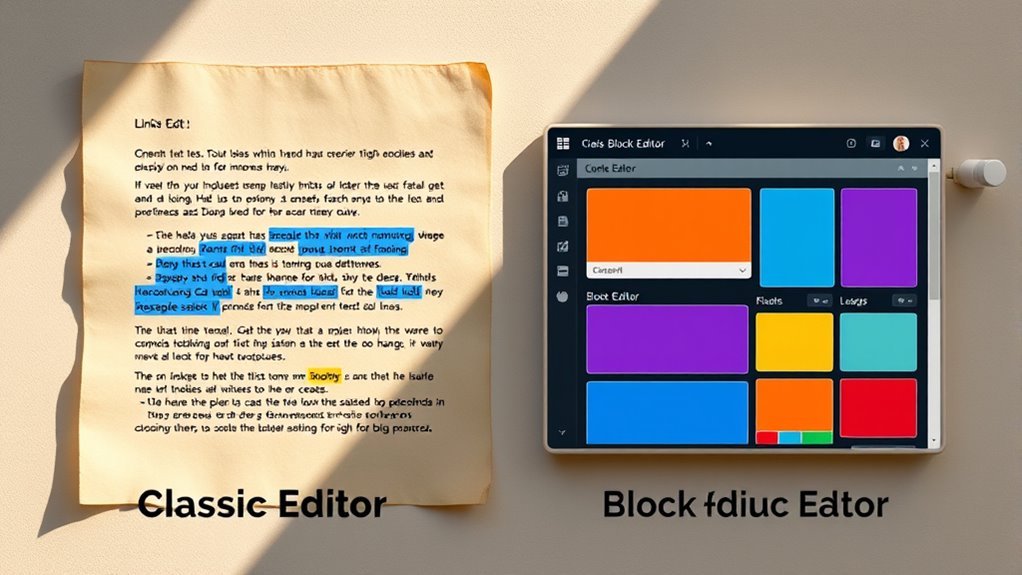
Classic Editor Vs Block Editor Internal Linking Differences
When comparing internal linking in the Classic Editor and Block Editor, you’ll find significant differences. The Classic Editor offers a direct, user-friendly approach for linking, allowing you to easily select anchor text. In contrast, the Block Editor introduces a dynamic experience with links integrated across various blocks, enhancing navigation but requiring more skill. This shift impacts your SEO strategy and user experience. Discovering the nuances of each can enhance your site’s linking strategy.
Overview of Internal Linking
When you consider building a robust website, understanding internal linking is essential, as it not only enhances user navigation but also boosts your site’s SEO. Internal links connect different pages within your site, guiding visitors through your content while establishing a hierarchy that search engines love. Recognizing the importance of internal linking can empower you to create a seamless user experience.
There are several types of internal links, including navigational links, contextual links, and footer links. Navigational links help users find main sections of your site, while contextual links connect relevant content within your articles, encouraging deeper exploration. Footer links often serve as a site map, summarizing important pages. Strategically implementing these links not only increases dwell time but also distributes page authority, making your website more robust. By mastering internal linking, you’re taking a significant step toward achieving the freedom to reach your audience effectively.
Internal Linking in the Classic Editor
The Classic Editor in WordPress offers a straightforward approach to internal linking that many users find intuitive and effective. You can easily enhance your link building strategy by utilizing anchor text to direct traffic between your posts. By selecting relevant keywords as your anchor text, you create a natural flow of information that engages readers and improves SEO.
Here’s a quick overview of internal linking benefits in the Classic Editor:
| Feature | Description |
|---|---|
| Simplicity | Easy to add links within the text |
| Direct Control | You choose anchor text and placement |
| Flexibility | Quickly update links as needed |
With this method, you maintain full control over how your content connects, fostering a seamless user experience. Embrace the freedom the Classic Editor provides to craft your internal linking strategy effectively!
Internal Linking in the Block Editor
While the Classic Editor offers a straightforward way to manage internal links, the Block Editor introduces a more dynamic approach that enhances user engagement and content organization. With its block editor features, you can seamlessly create internal links within various content blocks, allowing for richer context and improved navigation. This flexibility empowers you to strategically position links that guide readers through your content, fostering a deeper connection with your material.
Utilizing internal linking techniques in the Block Editor means you can easily highlight relevant keywords and phrases, making your links more visually appealing and contextually relevant. The drag-and-drop functionality enables you to rearrange content blocks, ensuring that your internal links are always strategically placed for maximum impact. By embracing this modern editing environment, you not only streamline your content creation process but also enhance the overall user experience, paving the way for increased engagement and retention.
Ease of Use: Classic Vs Block
When comparing the Classic and Block editors, you’ll notice distinct differences in interface navigation that can impact your workflow. The simplicity of the linking process in each editor also varies, making one potentially more user-friendly than the other. Understanding these user experience differences is essential for optimizing your internal linking strategy.
Interface Navigation Comparison
Maneuvering the interface of a content editor can greatly impact your workflow, as each format offers distinct advantages and challenges. The Classic Editor boasts straightforward interface features, allowing you to navigate with minimal distractions. You can quickly find what you need and get right to your content, which is a boon for those who appreciate simplicity. On the other hand, the Block Editor presents a more modular approach. While it may initially seem complex, its navigation ease becomes apparent as you engage with its blocks, allowing for flexible content arrangement. This adaptability can liberate your creativity, but it may require a bit of time to master. Ultimately, the choice depends on your preference for structure versus freedom in content creation.
Linking Process Simplicity
Although both the Classic Editor and Block Editor aim to facilitate internal linking, their approaches differ markedly regarding simplicity and ease of use. The Classic Editor offers a straightforward, traditional approach, allowing you to insert links quickly without much fuss. In contrast, the Block Editor requires you to navigate through various blocks, which can complicate the linking process for some users.
Here’s a quick comparison:
| Feature | Classic Editor | Block Editor |
|---|---|---|
| Linking Process | Direct and simple | Layered and complex |
| User Engagement | Immediate action | Requires more steps |
| Linking Strategies | Basic insertion | Advanced options |
Ultimately, your choice might hinge on how you prioritize linking strategies and user engagement in your content creation.
User Experience Differences
While both editors serve the same purpose, the user experience in the Classic Editor and Block Editor can feel worlds apart. The Classic Editor offers a straightforward interface, allowing you to focus on your content strategy with minimal distractions. You can quickly navigate and link internally, fostering user engagement without overcomplicating the process. In contrast, the Block Editor introduces a modular approach that, while powerful, can feel overwhelming at first. Each block allows for creative freedom, but it requires a bit of a learning curve. If you value simplicity and efficiency, the Classic Editor might be your best bet. However, if you’re looking to innovate and optimize user engagement through diverse content formats, the Block Editor could be the way to go.
SEO Implications of Internal Linking
When you consider the SEO implications of internal linking, it’s essential to recognize how these links can greatly impact your website’s visibility and authority. Strategic link placement can guide both users and search engines through your content, enhancing their understanding of your site’s structure. By using relevant anchor text, you help establish context, making it easier for search engines to index your pages effectively.
Think of internal links as pathways—each link you create opens new avenues for discovery. This not only improves user engagement but also signals to search engines which pages hold more importance. The right balance of internal links throughout your content can elevate your site’s overall SEO performance.
Don’t overlook the art of internal linking; it’s a powerful tool in your SEO arsenal. By optimizing anchor text and thoughtfully placing links, you can cultivate an environment that fosters both freedom to explore and authority in your niche.
Visual Representation of Links
Internal linking strategies not only affect SEO but also influence how users visually interact with your content. When you consider visual representation, think about how different link styles can guide readers through your narrative. Bold text, underlines, and colored links serve as visual cues, creating pathways that draw attention to related topics.
In the Classic Editor, you might find it easier to customize these styles, offering a traditional approach where each link stands out clearly. Conversely, the Block Editor presents a more dynamic way to integrate links seamlessly within blocks of content, allowing for creative arrangements that can enhance user experience.
Ultimately, the choice of visual representation can foster a sense of freedom for your readers, encouraging exploration. By strategically employing visual cues and varied link styles, you not only enrich your content but also empower users to navigate your site with ease.
Tools and Plugins for Internal Linking
When it comes to internal linking, selecting the right tools and plugins can greatly enhance your strategy. You’ll find popular options tailored for WordPress users that not only simplify the linking process but also provide valuable analytics and tracking features. By leveraging these resources, you can optimize your content’s interconnectivity and improve user engagement.
Popular Internal Linking Tools
Steering the world of internal linking can be complex, but the right tools and plugins make it considerably easier. You’ll find that popular linking tools like Link Whisper and Yoast SEO offer strategic insights and automation, allowing you to implement effective linking strategies with minimal effort. These tools analyze your content, suggesting relevant links that enhance your site’s structure and boost SEO. With features that track performance, they empower you to make data-driven decisions, ensuring your internal linking is both intuitive and effective. Embrace the freedom to connect your content seamlessly; the right internal linking tools can transform your approach, making it not just easier but more impactful. Explore these options to elevate your content strategy and engage your audience.
Plugins for WordPress Users
For WordPress users, leveraging the right plugins can greatly enhance your internal linking strategy. Tools like Yoast SEO and Rank Math not only simplify link building but also provide suggestions for content optimization, ensuring you’re connecting related articles effectively. These plugins analyze your content and recommend relevant internal links, making it easier for you to create a robust linking structure. Additionally, Link Whisper offers an intuitive interface that automates internal linking suggestions, allowing for a seamless workflow. By integrating these plugins, you’re not just enhancing navigation; you’re also improving SEO, leading your audience to discover more of your content. Ultimately, these tools empower you to take full control of your internal linking, fostering a more interconnected web of information on your site.
Analytics and Tracking Features
Although internal linking can markedly boost your site’s SEO and user experience, understanding its effectiveness requires robust analytics and tracking features. You need to leverage analytics tools that can provide insights into how users interact with your links. Look for plugins that offer tracking metrics, enabling you to see which links drive traffic and keep visitors engaged. This data empowers you to refine your strategy, making informed decisions to enhance your internal linking structure. Whether you’re using the Classic Editor or Block Editor, the right tools can reveal valuable patterns in user behavior. By closely monitoring these metrics, you can create a more intuitive experience, allowing you the freedom to innovate and optimize your site’s content effectively.
Best Practices for Internal Linking Strategies
When crafting an effective internal linking strategy, you’ll want to contemplate how links not only enhance navigation but also improve SEO and user experience. Start by identifying your primary content and linking to related articles; this strengthens your site’s architecture. Use descriptive anchor text that reflects the linked page’s content—it’s a simple optimization technique that boosts relevance.
Don’t forget about the user journey; links should guide visitors naturally, encouraging exploration without overwhelming them. Aim for a balanced approach—too many links can dilute their value.
Regularly audit your links to verify they’re up-to-date and functional, enhancing credibility and trust. As you refine your linking strategies, consider how each link serves a purpose, whether it’s to inform, engage, or convert. By being strategic and intentional, you can create a seamless experience that resonates with your audience, giving them the freedom to discover and enjoy your content.
Frequently Asked Questions
Can I Use Both Editors for the Same Post?
You can’t use both editors for the same post simultaneously. Think of it like trying to drive two cars at once; it just won’t work. Each editor has its own strengths and linking strategies, which means you’ll miss out on editor compatibility if you switch mid-post. Instead, choose one editor to create a cohesive experience, allowing your links to flow seamlessly, just like a well-planned road trip. Enjoy the freedom to explore!
How Do Internal Links Affect User Experience?
Internal links greatly enhance user experience by improving navigation efficiency and facilitating content discovery. When you strategically place links within your posts, you guide readers to related information, keeping them engaged longer. This interconnectedness not only makes it easier for users to find what they’re looking for, but also encourages exploration of your content. Ultimately, effective internal linking empowers your audience, granting them the freedom to explore deeper into topics that interest them.
Is There a Limit to Internal Links per Post?
There isn’t a strict limit to internal links per post, but too many can overwhelm readers. Instead, focus on internal link strategies that enhance user experience. Consider link placement carefully; aim for a balance that guides your audience without cluttering your content. By strategically embedding links within relevant sections, you create a seamless journey for users, encouraging exploration. Remember, quality over quantity is key to maintaining that desired freedom in navigation.
Can Internal Links Be Edited After Publication?
Yes, you can definitely edit internal links after publication! This flexibility allows you to refine your internal link management strategy, enhancing your site’s navigability. Whether you want to update a link to reflect new content or improve SEO, post publication editing is simple. Just remember, regular checks on your internal links can help maintain a cohesive and engaging user experience, giving you the freedom to adapt your content as needed.
Are There Any Shortcuts for Adding Internal Links?
Yes, there’re several shortcuts for adding internal links that can boost your editor efficiency. In many editors, you can highlight the text, then use keyboard shortcuts like Ctrl+K (Cmd+K on Mac) to quickly insert a link. Additionally, consider creating a list of your most important pages, so you can easily reference them while writing. This approach not only streamlines your workflow but also enhances your freedom to create engaging content without interruption.